Google Chrome for Linux
James Edward Anthony
Content Writer
Google Chrome for linux - is developed by all the favourite Google, which is characterized by impressive performance and beautiful design. Google Chrome is already a worthy competitor
Google Chrome for Linux
Google Chrome is a chromium-based browser developed by well-known, all-favourite Google. It is characterized by impressive performance and beautiful design. Google Chrome is already a worthy competitor to all existing browsers and an excellent replacement for Internet Explorer ( which will be discontinued in June 2022 ), Opera and Firefox.
Powerful features of Google Chrome
- Google Chrome has a very user-friendly interface.
- This browser has built-in visual effects that are independent of Compiz.
- In the assembly, the box is the present express panel.
- You can set the search engine for the address bar that allows you to write queries directly in the address bar.
- Each open tab or window Google Chrome is a dedicated process in the system, which improves the stability and security of the browser.
- Google Chrome was originally developed with Apple's WebKit, but all the variants of Google Chrome except iOS now use the Blink Engine.
- Centralized download extensions and themes. Google Chrome now has a massive library of extensions.
- All the best developments appear in Google Chrome, only after running them in the Open Source browser Chromium.
- Google Chrome has inbuilt developer tools.
Install Google Chrome on Linux
To install Google Chrome on any Linux operating system, you must download a binary package for your OS from the official Google site and install it manually. You can install Google Chrome in the Ubuntu OS more easily. Make sure your operating system is 64-bit and it won't work on a 32-bit operating system.
Step 1: Getting Google Chrome
Go to Google Chrome's download page and click on download. You will receive a prompt that will give you an option to download 64-bit .deb file for Debian/Ubuntu. Select that option and click 'Accept and Install'. Save the file on your hard drive.
Step 2: Installing .deb file
Your downloaded .deb file should be in your downloaded folder (or whichever folder you chose to save the file in). Double click on that file to run it. This will open Ubuntu's software centre, which will display an option to install Google Chrome on your device.Note: If your device is password protected, then you will have to enter your password before you begin the installation.That's it! You're done. It's as simple as installing a program on macOS or Windows.
Need further help?!
Digital Lime Green is well-equipped to provide you with further assistance regarding your queries. Need to chat with us? Feel free to connect with us through the portal!
More articles
View all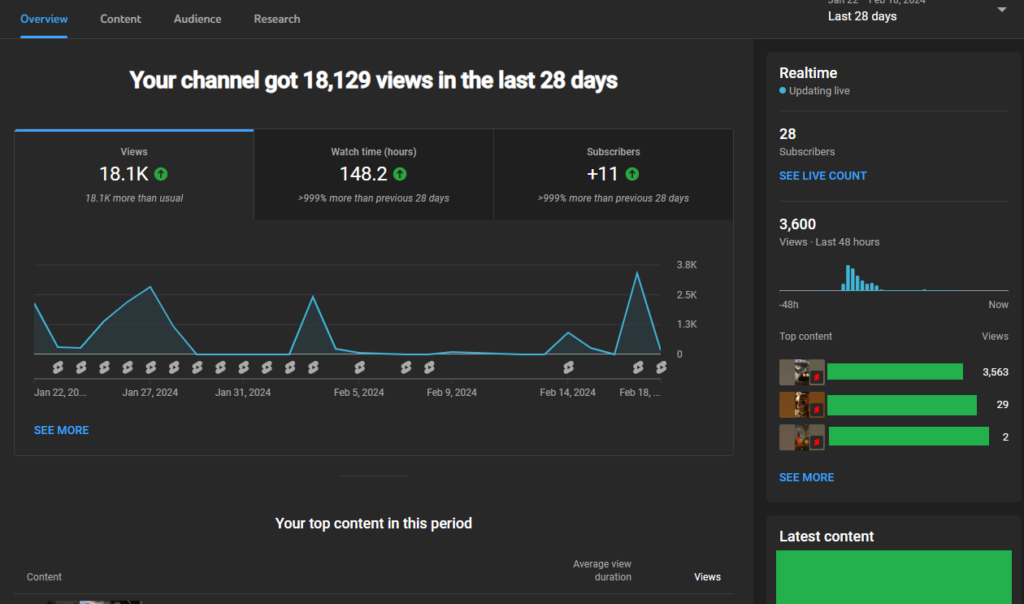 How-to
YouTube Studio Analytics | See Your Videos Perform in Cape Town!
Previously, we talked about YouTube Studio's Dashboard, which is an overview of your channel's performance. Now, let's talk about the Analytics tab in the YouTube studio. Understanding YouTube Studio performance analytics can help you grow your channel in the right direction in Cape Town. In this article, we will see the different statistics YouTube Studio [...]
Read more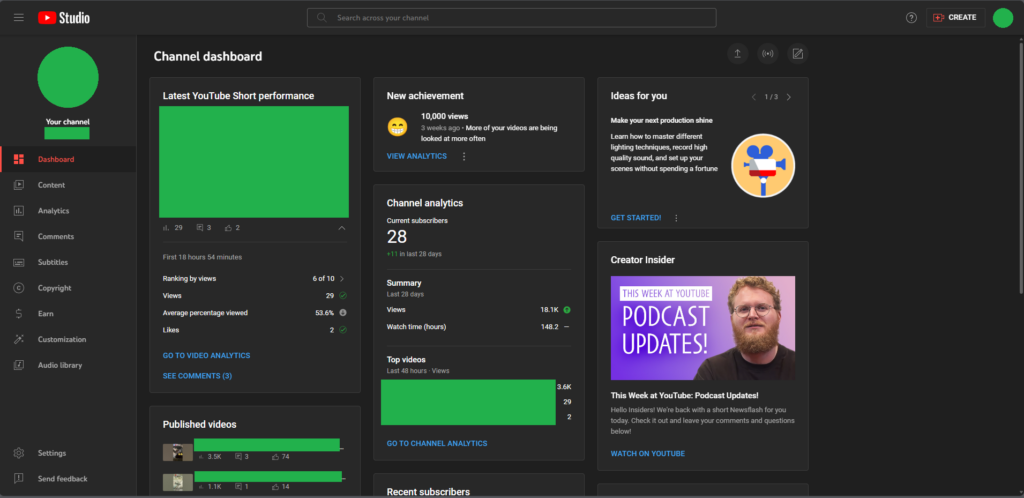 How-to
Let’s Understand the YouTube Studio Dashboard! | Cape Town
YouTube Studio is a great way to keep tabs on your videos. Whether it is about gathering analytical data or managing your content, YouTube Studio provides an effective solution by delivering detailed insights into your videos. As YouTube is getting popular in 2024, many South African youth consider trying their hand at YouTube. In this [...]
Read more How-to
Effective SEO Methods for Small Businesses in South Africa
Local businesses have been booming post-pandemic, thanks to the digital realisation. Having a website has become crucial ever since. However, having a website for your business does not mean it will attract business right off the bat. You have to get the SEO (Search Engine Optimisation) right to maximise your website's efficiency. In this article, [...]
Read more